Planner
The planner tool will allow you to prepare an outdoor photo.
You can define your position relative to the subject and determine the correct position of the Sun, Moon or Galactic Center of the Milky Way you want.
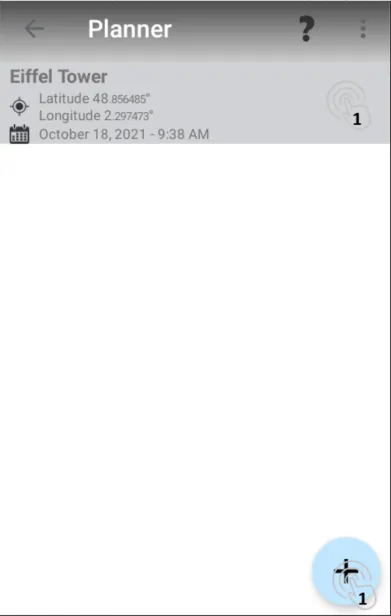
The first screen lists your saved schedules. You can either reopen one or define a new one.
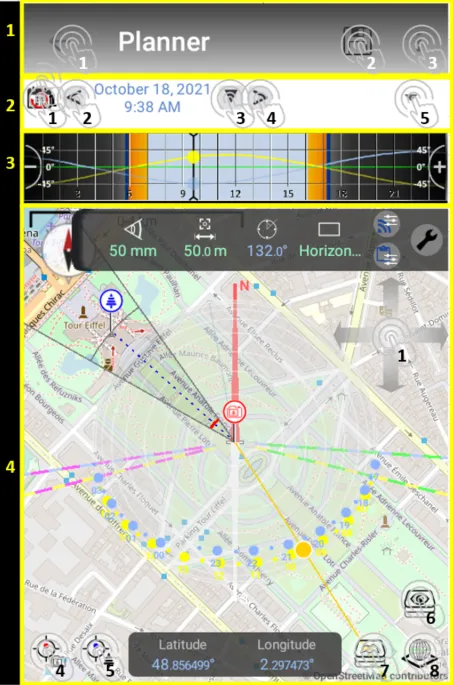
The interface of the planner is divided into 4 parts:
-
-
The toolbar that allows you to:
-
Quit the tool
-
Save planning
-
Delete planning
-
Share planning
-
-
Date selection
-
Back to now
-
Go to yesterday
-
Open the calendar
-
Go to tomorrow
-
Go to a day’s time
-
-
The timeline indicating the height of the Sun and Moon during the day
- Move the slider to the left or right to change the time
-
The map
-
Moving on the map
-
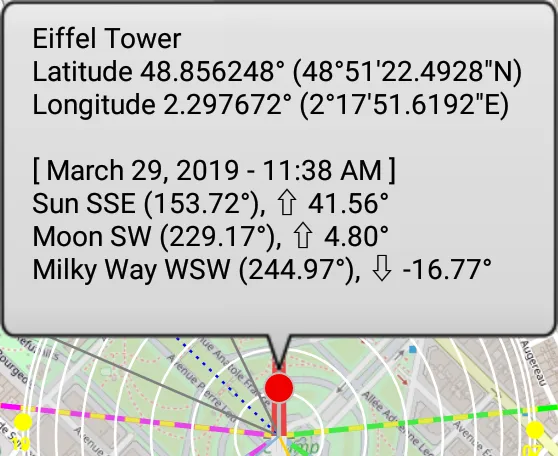
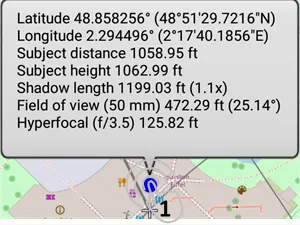
Click = Information about the photographer position and the Sun, Moon and Galactic Center (depending on what you want visible) positions.
-
-
Long click = Drag the red pin (Android only)3. Click = Information on the subject position
Long click = Drag the blue pin (Android only)4. Selection of the photographer location
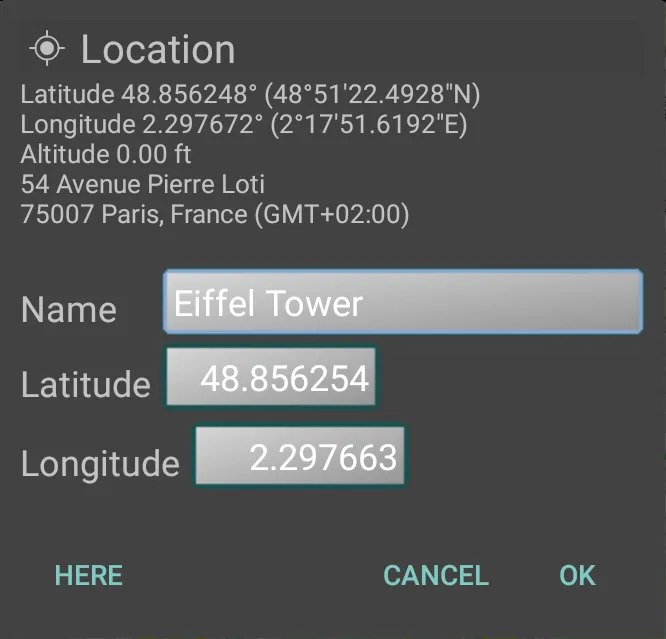
Click = enter position
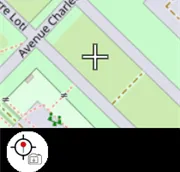
Long click = positioning of the red pin on the cross
Double click = positioning the center of the map on the red pin
In the selection window of the location, you have the possibility to:
-
-
-
-
View information from the current location
-
Define a name for your planning
-
Edit Latitude
-
Change the Longitude
-
-
-
You can select your physical location by clicking on “Here”
5. Selecting the location of the subject
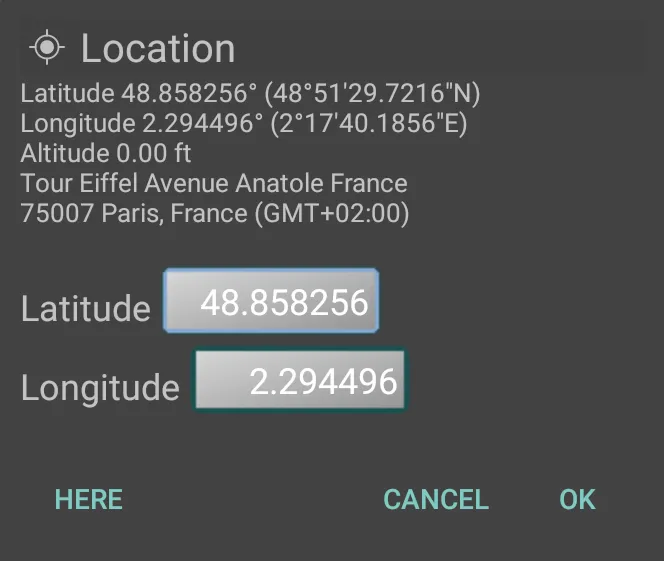
Click = enter position
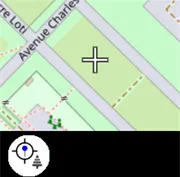
Long click = positioning of the blue pin on the cross
Double click = positioning the center of the map on the blue pin
In the selection window of the location, you have the possibility to:
-
-
-
-
View information from the current location
-
Edit Latitude
-
Change the Longitude
-
-
-
You can select your physical location by clicking on “Here”
6. Set the layers you want to see on the map
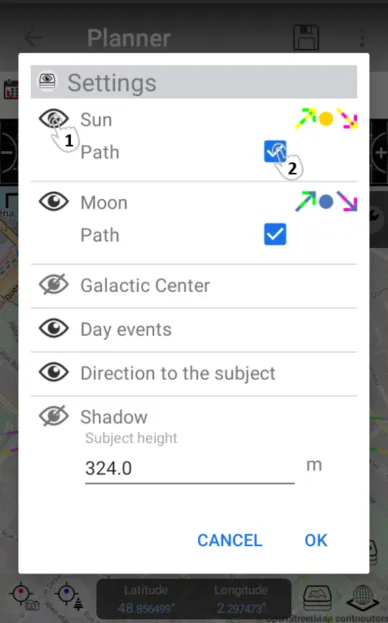
In the window for setting visible layers, you have the possibility to:
-
-
-
-
Make a layer visible or invisible by clicking on the eye
-
Make a sub-element of the layer visible or not by clicking on the On / Off button
-
-
-
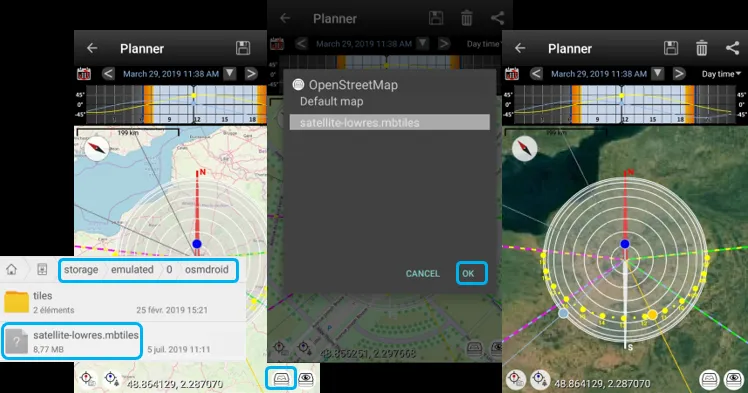
- Use OpenStreetMap maps in Offline
It’s possible to copy OpenStreetMap maps (non-vector) to your device for offline use or other renderings.
Just copy the card into the “osmdroid” folder.
Compatible card format:
-
MBTiles SQLite
-
Osmdroid ZIP
-
Osmdroid GEMF
-
Osmdroid SQLite
If you want to create your own maps, you can use:
-
Mobile Atlas Creator (MOBAC)
-
Maperitive.net
8. Augmented reality visualization
Change of representation
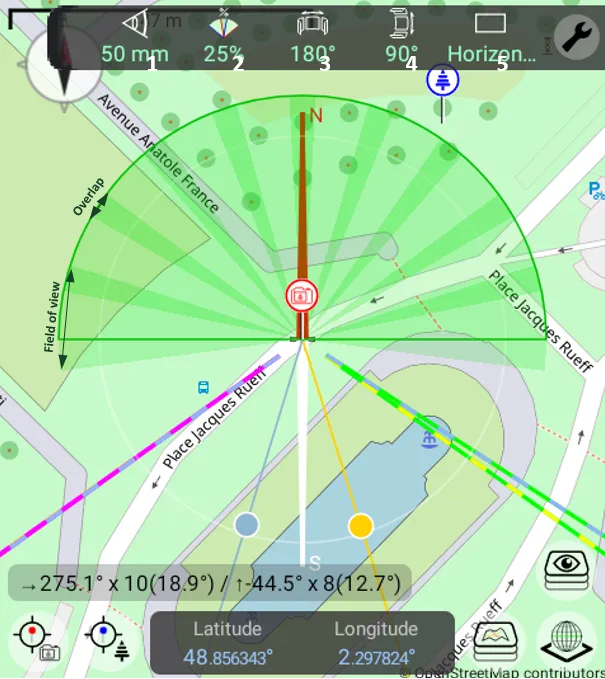
Section titled “Change of representation”You have 5 possible representations overlaying the map:
-
Classic with distance and azimuth visualization
-
Field of view
-
Depth of field
-
Drone
-
Panorama
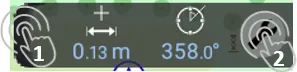
These representations are accessible via the bar at the top right of the map by clicking on the tool icon (2).
A click at the end of the bar (1) will fold or unfold this bar.
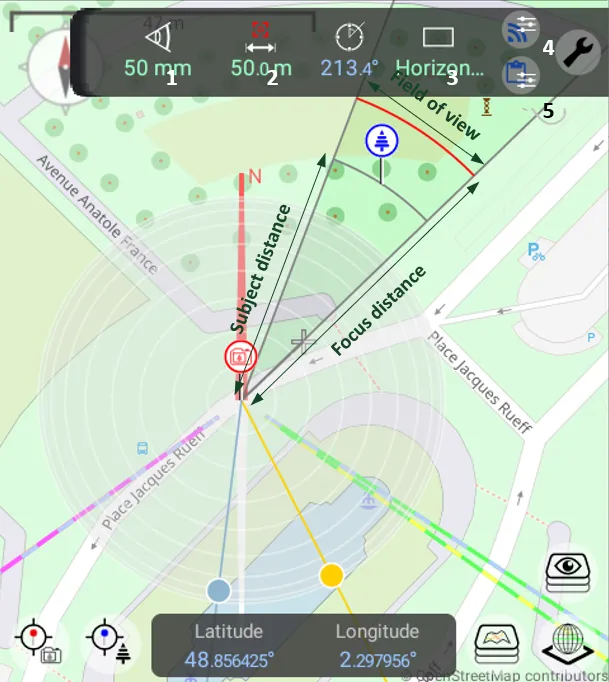
Field of view
Section titled “Field of view”-
Choice of focal length
-
Choice of focusing distance
-
Choice of orientation
-
Data transfer to the field of view tool
-
Copy data from the field of view tool to the planner
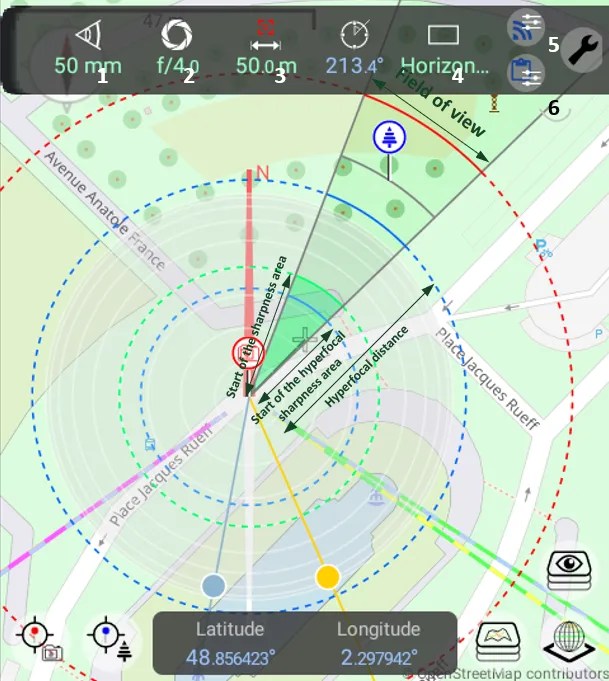
Depth of field
Section titled “Depth of field”-
Choice of focal length
-
Choice of opening
-
Choice of focusing distance
-
Choice of orientation
-
Data transfer to the depth of field tool
-
Copy data from the depth of field tool to the planner
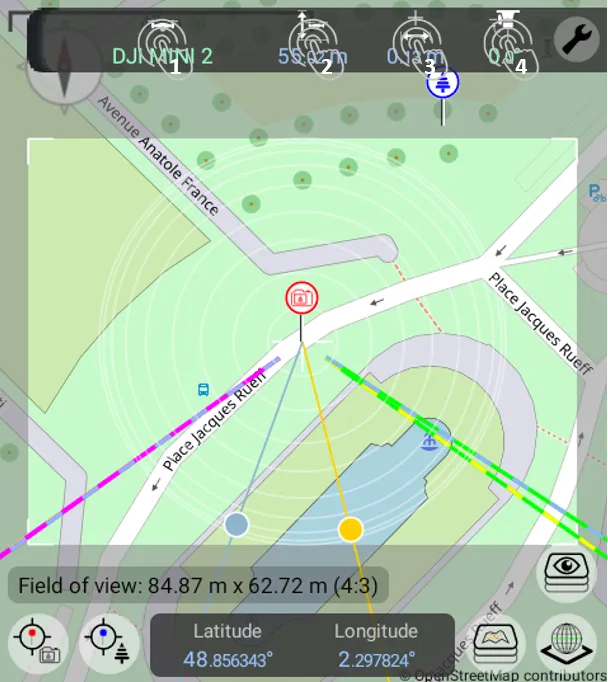
-
Choice of drone model
-
Drone height
-
Distance of the drone from your position
-
Choice of the angle of the drone’s camera (0 ° being downwards)
You get the following information at the bottom:
- The dimensions of the field of vision
Panorama
Section titled “Panorama”-
Choice of focal length
-
Choice of overlap percentage
-
Choice of the horizontal angle of the panorama
-
Choice of the vertical angle of the panorama
-
Choice of orientation
You get the following information at the bottom:
-
The horizontal start angle (corresponding to the middle of the field of view)
-
The number of horizontal photos
-
Horizontal angle without overlap
-
The vertical start angle (corresponding to the middle of the field of view)
-
The number of vertical photos
-
Vertical angle without overlap